
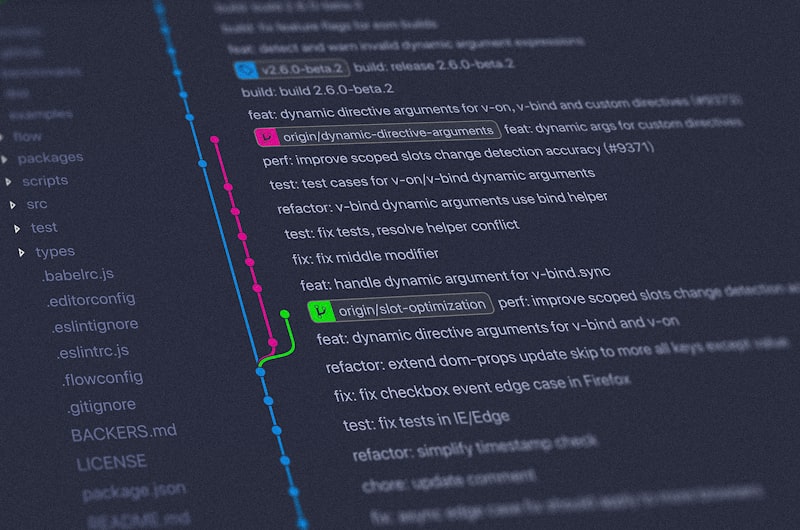
Introduction: The Programmer's Time Machine
Imagine writing an essay and being able to see every version you ever saved—not just the current one, but the first draft, every revision, every paragraph you deleted and might want back. Imagine being able to experiment freely, knowing you can always return to a working version. Imagine collaborating with classmates where everyone can work simultaneously without overwriting each other's work.
This isn't fantasy. It's what version control systems like Git do for programmers every day. And once you understand Git, you'll wonder how you ever coded without it.
In this comprehensive guide, we'll take you from complete beginner to confident Git user. You'll understand not just the commands, but the concepts behind them—because Git makes much more sense when you understand why it works the way it does.
---
Part 1: Understanding Version Control
The Problem Git Solves
Before version control, programmers faced constant challenges:
The Backup Nightmare:
project/
├── game.py
├── game_backup.py
├── game_backup2.py
├── game_final.py
├── game_final_v2.py
├── game_final_v2_ACTUALLY_FINAL.py
└── game_final_v2_ACTUALLY_FINAL_fixed.py
Sound familiar? This approach is error-prone, confusing, and takes up unnecessary space.
The Collaboration Chaos: Alice and Bob both work on the same file. Alice makes changes and saves. Bob makes different changes and saves. Whoever saves last overwrites the other's work. Hours of effort, lost.
The "What Broke It?" Mystery: Your code worked yesterday but doesn't today. You've made dozens of changes. Which one caused the problem? Without version history, you're left guessing.
Git solves all of these problems elegantly.
How Git Thinks
Git doesn't just save files—it saves snapshots of your entire project at specific points in time. These snapshots are called commits. Each commit is:
- A complete picture of all your files at that moment
- Connected to the commit that came before it
- Identified by a unique code (a hash) like
a3f4b2c - Accompanied by a message you write explaining the change
Think of it like a timeline:
Initial  →  Add player  →  Add enemies  →  Fix bug  →  Add scoring
 (a3f4b)     (b7c8d)        (e2f3a)        (c9d1e)      (f5g6h)
You can move back to any point on this timeline. You can create alternate timelines (branches). You can merge timelines together. It's genuinely like having a time machine for your code.
---
Part 2: Setting Up Git
Installing Git
On Windows: 1. Download Git from git-scm.com 2. Run the installer 3. Accept defaults (they're sensible) 4. Git Bash is now available—a terminal for Git commands
On Mac: 1. Open Terminal 2. Type git --version 3. If not installed, you'll be prompted to install Xcode Command Line Tools 4. Or install via Homebrew: brew install git
On Linux:
sudo apt update
sudo apt install git  # Debian/Ubuntu
First-Time Configuration
Before using Git, tell it who you are:
git config --global user.name "Your Name"
git config --global user.email "your.email@example.com"
This information appears in your commits. Use your real name (for professional work) and an email you check.
Optional but recommended:
git config --global init.defaultBranch main
git config --global core.editor "code --wait"  # Use VS Code for commit messages
---
Part 3: Your First Repository
Creating a Repository
A repository (repo) is a project folder that Git is tracking. Let's create one:
mkdir my-first-repo
cd my-first-repo
git init
That last command creates a hidden .git folder containing Git's database. Your folder is now a repository!
The Three States of Git
Git files exist in three states:
1. Working Directory: Your actual files that you edit 2. Staging Area: Files you've marked to include in the next commit 3. Repository: Committed snapshots stored in Git's database
The workflow is:
[Working Directory] --git add--> [Staging Area] --git commit--> [Repository]
Why the staging area? It lets you choose exactly which changes to include in a commit. You might have modified five files but only want to commit changes to two of them.
Making Your First Commit
Let's practice:
# Create a file
echo "# My First Project" > README.md

# Check status (you'll use this constantly)
git status
Git tells you README.md is "untracked"—Git sees it but isn't managing it yet.
# Stage the file
git add README.md

# Check status again
git status
Now it's under "Changes to be committed"—it's in the staging area.
# Commit with a message
git commit -m "Initial commit: Add README"
Congratulations! You've made your first commit. The -m flag lets you write the message inline.
Viewing History
git log
This shows your commit history:
commit a3f4b2c7d8e9f0a1b2c3d4e5f6a7b8c9d0e1f2a3 (HEAD -> main)
Author: Your Name <your.email@example.com>
Date:   Mon Jan 6 10:30:00 2026 -0800

    Initial commit: Add README
For a more compact view:
git log --oneline
---
Part 4: The Git Workflow
Daily Git Usage
Once you're working on a project, the typical workflow is:
1. Make changes to your files 2. Stage changes you want to commit: git add <files> 3. Commit with a descriptive message: git commit -m "message" 4. Repeat
Let's practice:
# Create a Python file
echo 'print("Hello, World!")' > hello.py

# Stage it
git add hello.py

# Commit
git commit -m "Add hello world program"

# Modify the file
echo 'print("Hello, Git!")' > hello.py

# See what changed
git diff

# Stage and commit the modification
git add hello.py
git commit -m "Change greeting to Git"
Useful Commands
Stage all modified files:
git add .
Stage and commit in one step (only for modified files, not new ones):
git commit -am "Your message"
See what's changed in staged files:
git diff --staged
Undo changes to a file (discard modifications):
git checkout -- filename
Unstage a file (keep changes but remove from staging):
git reset HEAD filename
Writing Good Commit Messages
Commit messages matter. Future you (and collaborators) will read them to understand what changed and why.
Bad messages:
- "Fixed stuff"
- "asdfasdf"
- "WIP"
- "Changes"
Good messages:
- "Fix player collision detection with walls"
- "Add high score display to game over screen"
- "Refactor enemy movement into separate function"
- "Update README with installation instructions"
The conventional format:
- Start with a verb (Add, Fix, Update, Remove, Refactor)
- Be specific about what changed
- Keep the first line under 50 characters
- If more detail is needed, add a blank line and then paragraphs of explanation
---
Part 5: Branches
Why Branches?
Branches let you work on features, fixes, or experiments without affecting the main code. They're like parallel universes for your project.
Imagine you're working on a game. You want to: 1. Add a new level 2. Try a different scoring system 3. Keep the current working version safe
With branches, you can do all three simultaneously.
Creating and Using Branches
# Create a new branch
git branch new-feature

# Switch to it
git checkout new-feature

# Or do both at once
git checkout -b new-feature
Now you're on the new-feature branch. Any commits you make exist only on this branch.
# Make some changes
echo 'print("New feature!")' > feature.py
git add feature.py
git commit -m "Add new feature"

# Switch back to main
git checkout main

# Notice: feature.py doesn't exist here!
ls
The main branch is unchanged. Your experiment is safely isolated.
Merging Branches
When your feature is ready, merge it back:
# Make sure you're on the branch you want to merge INTO
git checkout main

# Merge the feature branch
git merge new-feature
If there are no conflicts (changes to the same lines), Git handles everything automatically.
Handling Merge Conflicts
Sometimes Git can't automatically merge because both branches changed the same lines. This creates a conflict:
<<<<<<< HEAD
print("Hello from main")
=======
print("Hello from feature")
>>>>>>> new-feature
You must manually edit the file to resolve the conflict: 1. Open the file 2. Decide which version to keep (or combine them) 3. Remove the conflict markers (<<<<<<<, =======, >>>>>>>) 4. Stage and commit the resolution
# After manually editing
git add conflicted-file.py
git commit -m "Resolve merge conflict in greeting"
---
Part 6: GitHub
What Is GitHub?
Git is the version control system that runs on your computer. GitHub is a website that hosts Git repositories online, enabling:
- Backup: Your code exists in the cloud, not just on your computer
- Collaboration: Others can access, contribute to, and review your code
- Portfolio: Show potential employers what you've built
- Community: Share projects and contribute to open source
Alternatives exist (GitLab, Bitbucket), but GitHub is the most popular.
Setting Up GitHub
1. Create an account at github.com 2. Choose a professional username (employers will see this!) 3. Set up SSH authentication (more secure, no password typing):
# Generate SSH key
ssh-keygen -t ed25519 -C "your.email@example.com"

# Start SSH agent
eval "$(ssh-agent -s)"

# Add key to agent
ssh-add ~/.ssh/id_ed25519

# Copy public key
cat ~/.ssh/id_ed25519.pub
# Copy the output
4. Go to GitHub → Settings → SSH Keys → Add new key 5. Paste your public key
Connecting Local to Remote
Option 1: Start locally, push to GitHub
1. Create a repository on GitHub (don't initialize with README) 2. Connect your local repo:
git remote add origin git@github.com:yourusername/your-repo.git
git push -u origin main
Option 2: Clone from GitHub
git clone git@github.com:username/repository.git
cd repository
# You're ready to work!
Push and Pull
Push sends your commits to GitHub:
git push
Pull gets changes from GitHub:
git pull
Rule: Always pull before you start working to get the latest changes!
---
Part 7: Collaboration Workflows
The Fork and Pull Request Model
When contributing to someone else's project:
1. Fork: Create your own copy of their repository on GitHub 2. Clone: Download your fork to your computer 3. Branch: Create a branch for your changes 4. Commit: Make and commit your changes 5. Push: Push your branch to your fork 6. Pull Request: Ask the original project to incorporate your changes
This is how open source works!
Pull Requests
A pull request (PR) is a proposal to merge your changes into a project. It includes:
- Your commits and their changes
- A description of what you're proposing
- Discussion space for feedback
- Automated checks (if configured)
Writing good PR descriptions:
- Explain what the change does
- Explain why it's needed
- Include screenshots if visual changes
- Reference any related issues
Code Review
Before merging, others review your code:
- They may request changes
- They may ask questions
- They may approve and merge
This process catches bugs, improves code quality, and spreads knowledge across the team.
---
Part 8: Git Best Practices
Commit Often
Small, frequent commits are better than rare, massive commits:
- Easier to understand what changed
- Easier to undo specific changes
- Less likely to have merge conflicts
- Better progress tracking
Think of commits like "save points" in a video game.
Use .gitignore
Some files shouldn't be tracked:
- Compiled files (
.pyc,.class) - Dependencies (
node_modules,venv) - IDE settings (
.idea,.vscode) - Secrets (
config.pywith passwords)
Create a .gitignore file:
# Python
__pycache__/
*.pyc
venv/

# IDE
.idea/
.vscode/

# OS
.DS_Store
Thumbs.db

# Secrets
config.py
.env
Keep main Clean
- Main branch should always work
- Develop features in branches
- Merge only when complete and tested
- Consider protecting main branch on GitHub
Write Meaningful READMEs
Every project should have a README.md that includes:
- What the project does
- How to install/run it
- How to use it
- How to contribute (for open source)
- License information
---
Part 9: Undoing Things
Undo Uncommitted Changes
Discard changes to a specific file:
git checkout -- filename.py
Unstage a file:
git reset HEAD filename.py
Modify the Last Commit
Change the message:
git commit --amend -m "New message"
Add forgotten files:
git add forgotten-file.py
git commit --amend --no-edit
⚠️ Only amend commits that haven't been pushed!
Undo a Commit
Create a new commit that undoes a previous commit:
git revert HEAD  # Undo the last commit
git revert a3f4b  # Undo a specific commit
This is safe for shared history—it adds a new commit rather than removing old ones.
Dangerous: Actually remove commits:
git reset --hard HEAD~1 # Remove last commit entirely
⚠️ This rewrites history. Never do this to pushed commits on shared branches!
---
Part 10: Git for TechSpaces Students
Why GitHub Matters for You
Build Your Portfolio: Every project you complete at TechSpaces can be a GitHub repository. By the time you apply for internships or college, you'll have a body of work demonstrating your skills.
Show Progression: Commit history shows your growth. Reviewers can see how you improved code, fixed bugs, and added features over time.
Demonstrate Collaboration: Pull requests and team projects show you can work with others—a crucial skill employers look for.
Access Anywhere: Work on school computers, home computers, or even a new device. Your code is always accessible.
Getting Started at TechSpaces
1. Create a GitHub account with a professional username 2. Create a repository for your current TechSpaces project 3. Commit your code at the end of each session 4. Write descriptive commit messages 5. Keep your README updated
Even simple projects look professional with a well-maintained GitHub repository.
---
Conclusion: Your Code Deserves History
Git and GitHub might seem like extra complexity when you're learning to code. But they're essential tools used by virtually every professional developer.
Starting early gives you:
- Safety: Your code is backed up and recoverable
- Freedom: Experiment without fear
- Professional Skills: Impress future employers
- Portfolio: Show what you've built
- Community: Participate in open source
The commands might feel awkward at first. That's normal. With practice, git add → git commit → git push will become as natural as saving a file.
Your future self will thank you for every commit. Your future employers will be impressed by your maintained repositories. Your future collaborators will appreciate working with someone who understands version control.
Start today. Initialize a repo. Make a commit. Push to GitHub. Welcome to the way professionals work.